Saturday, June 22, 2013

Some things to be prepared of in the next big Release of Microsoft Dynamics CRM

Do visit the below link to know more about the changes as part of the next big release.

1. Removal of the 2007 Endpoint and Legacy Features
2. Removal of JavaScript Form Scripting Support for Microsoft Dynamics CRM 4.0 Objects and Functions
3. Changes to the Document Object Model (DOM)
4. Removal of Some Ribbon Controls
5. Microsoft Lync Presence Not Supported
6. Removal of Workplace and Personalization Options for New Customers
7. Duplicate Detection during Record Create and Update Operations Not Supported

To know more about, please do visit this: 
  • http://msdn.microsoft.com/en-us/library/dn281891.aspx
  • http://technet.microsoft.com/en-us/library/dn265924.aspx


Microsoft Dynamics CRM SDK 5.0.16 Released.


SDK 5.0.16 Released.


Things to know about the new release: You could view this in the downloaded SDK:

New and updated topics
Description of changes
Microsoft_Dynamics_CRM_2011_SDK_Readme.htm
Updated the readme for this version of the SDK package.
Active Directory and Claims-Based Authentication
Authenticate Office 365 Users with Microsoft Dynamics CRM Online Web Services
OrganizationServiceProxy
DiscoveryServiceProxy
Updated these topics to remove the restriction on using the service proxy classes when authenticating with the Microsoft online services identity provider of Microsoft Dynamics CRM Online. You can now use these proxy classes with all deployment types and identity providers.
BulkDeleteRequest
BulkDetectDuplicatesRequest
Added in Remarks that you can run the bulk delete job or bulk detect duplicates job daily or without recurrence.
Create, Export, or Import an Unmanaged Solution
Create, Install, and Update a Managed Solution
Added a note to these topics saying “Installing a solution can interfere with normal system operation. We recommend that you schedule solution imports when it’s least disruptive to users.”
Form XML Reference
The following FormXml elements have been updated to indicate that they are for internal use only: (FormXml), (FormXML), (FormXml), and (FormXml). These elements are used only in a quick form, which is not customizable. These elements will be removed from the schema in the next major release.
Handle Exceptions in Plug-Ins
Clarified how plug-in exceptions are handled and where error message are written or displayed.
Introduction to Activity Feeds
Corrected the maximum number of characters in the posts created programmatically. The correct value is 2000 characters.
Introduction to Solutions
Added the Enterprise Solution Lifecycle Management section introducing the ALM for Microsoft Dynamics CRM 2011: CRM Solution Lifecycle Management white paper.
Open Forms, Views, Dialogs and Reports with a URL
Appended to an existing note to include:
Microsoft Dynamics CRM forms are not designed to be opened as dialogs using either showModalDialog or showModelessDialog.
Uninstall or Delete a Solution
Added an Access the Solutions List with a URL section.
What’s Changing in the Next Major Release
Added a new topic to provide information about what is changing in the next major release of Microsoft Dynamics CRM.
Write Custom Code for Microsoft Dynamics CRM for Outlook
GoOffline
GoOnline
Added a note that these methods cannot be used in a plug-in because they cause a UI interaction with the user.
Xrm.Page.data.entity Attribute Methods
Added a missing getFormat return value: textarea.
Xrm.Page.ui Control Methods
Added a remark to the addCustomView method to show that this method does not work with Owner lookups.
Xrm.Utility Reference
Corrected an error for the openEntityForm method. This method returns a Boolean value rather than a window object.
                                                         

Thursday, February 28, 2013

Rollup 12 :- Pricelist Item error on Opportunity screen

In the latest roll-up 12 updates, I found an error message displaying on the opportunity screen for the missing price list. If your business not making use of the price list item an OOTB feature, one of the solution you can make use of to suppress the error message, is  by updating a price List Item using a Retrieve plugin. Keep in mind this needs to be configured as a Pre-event stage in the Plugin configuration tool. 

Code sample:

using System;
using System.Collections.Generic;
using System.Linq;
using System.Text;
using Microsoft.Xrm.Sdk;
using Microsoft.Xrm.Sdk.Query;

namespace Opportunity
{
    public class SetDefaultPriceList : IPlugin
    {
        public void Execute(IServiceProvider sp)
        {
            //--Trigger: Retrieve Message of opportunity
            //--Stage: Pre
            //--Method: Synchronous
            //--Filter Attributes: none
            //--Pre Attributes: none
            //--Post Attributes: none
            //--Description: Setting the the default PriceList value.
            //--Author: Chaitanya

            var tracer = (ITracingService)sp.GetService(typeof(ITracingService));
            var context = (IPluginExecutionContext)sp.GetService(typeof(IPluginExecutionContext));

            if (context.MessageName == "Retrieve" && context.PrimaryEntityName == "opportunity")
            {
                var factory = (IOrganizationServiceFactory)sp.GetService(typeof(IOrganizationServiceFactory));
                IOrganizationService service = factory.CreateOrganizationService(null);

                Guid priceListId = Guid.Empty;

                var priceListsEntity = GetDefaultPriceLevel(service);
                if(priceListsEntity.Entities.Count > 0)
                    if(priceListsEntity.Entities[0].Attributes.Count > 0)
                        if(priceListsEntity.Entities[0].Attributes.Contains("pricelevelid"))
                            priceListId = (Guid)priceListsEntity.Entities[0].Attributes["pricelevelid"];
                   if(priceListId != Guid.Empty)
                   {
                       var opportunity = new Entity(context.PrimaryEntityName) { Id = context.PrimaryEntityId };
                       opportunity.Attributes.Add("pricelevelid", new EntityReference("pricelevel",priceListId));
                       service.Update(opportunity);
                   }
            }
        }

        private static EntityCollection GetDefaultPriceLevel(IOrganizationService service)
        {
            var cols = new ColumnSet("pricelevelid", "name");
            var filter = new FilterExpression { FilterOperator = LogicalOperator.And };
            filter.AddCondition(new ConditionExpression("name", ConditionOperator.Equal, new object[] { "Default Price List" }));

            var query = new QueryExpression
            {
                ColumnSet = cols,
                Criteria = filter,
                EntityName = "pricelevel"
            };
            return service.RetrieveMultiple(query);
        }
    }
}
One more thing to keep in mind, Before running this code, you should have a "Default Price List" created with the same name. 

Hope this helps, 
Chaitanya...

Saturday, February 23, 2013

XRM Utility

Some quick tips on the javascript utilities:

for any reason, if the dashboard is clumsy in the real esate in displaying grid and charts, we can provide a button to view in a new tab by exploding or opening the web resource in a new tab.

Code sample:


//HTML Web Resource
Xrm.Utility.openWebResource(
    webResourceName
  ,
    webResourceData
  ,
    width
  , 
    height
  )

//Example 
//Open an HTML web resource named “new_webResource.htm”
Xrm.Utility.openWebResource("new_webResource.htm");

//Open an HTML web resource, setting the height and width
Xrm.Utility.openWebResource("new_webResource.htm", null, 500,700);

//Open an HTML web resource with the parameters expected by HTML web resources
Xrm.Utility.openWebResource("new_webResource.htm?typename=account&userlcid=1033");

//Entity Form:
Xrm.Utility.openEntityForm(
    name
  ,
    id
  ,
    parameters
  )
  
//Example
//Open a new account record
Xrm.Utility.openEntityForm("account");

//Open an existing account record
Xrm.Utility.openEntityForm("account","B85N0252-GHT8-U111-997C-99055D8A8410");

Hope this helps,
Chaitanya...

Monday, January 21, 2013

Execute Multiple Request (Rollup 12 - SDK 5.0.13)

Today, I have used the latest SDK 5.0.13 DLL to take advantage of "ExecuteMultipleRequest" for one of the bulk create and update scenario. This is really a nice SDK message for dealing with loads of data. It drastically improved the overall performance. This is mainly used for Bulk Creating, Updating and Deleting the records.
 
ExecuteMultipleRequest accepts an input collection of message Requests, executes each of the message requests in the order they appear in the input collection, and optionally returns a collection of Responses containing each message’s response or the error that occurred. Each message request in the input collection is processed in a separate database transaction.

@Developers, This is a very helpful message inclusion in the December 2012 Service updates (Rollup 12).

Here are the detailed steps with code snippet:

Create Scenario:
  • Create an Entity Collection object to hold multiple entity records.
  • Call the ExecuteMultipleRequest as in the below code snippet.
 
//Class level variable
private static EntityCollection _accountCollection = null;

//Create an instance of an entity collection
_accountCollection = new EntityCollection();

//Account object, You can use a for loop to add entity object to a collection.
for (int i = 0; i < 10; i++)
{
   var accountEntity = new Entity { LogicalName = "account" }; 
   accountEntity.Attributes.Add("name", "Test Account");

   /************************************************************/
   //accountId is a GUID of an account used only on UPDATE
     accountEntity.Attributes.Add("accountid", accountId);
   /************************************************************/

   accountEntity.Attributes.Add("accountnumber", "10010010");

   //Add an account entity to an entity collection
  _accountCollection.Entities.Add(accountEntity);
}

//Create
ExecuteCreateMultipleRequest(service, _accountCollection, tracer)

//Update : Note an entity collection records to have a GUID
ExecuteUpdateMultipleRequest(service, _accountCollection, tracer)


/// 
/// Latest SDK Message for Multiple record create
/// 
/// 
/// 
/// 
private static void ExecuteCreateMultipleRequest(IOrganizationService service, EntityCollection input, ITracingService tracer)
{
 // Create an ExecuteMultipleRequest object.
 var requestWithResults = new ExecuteMultipleRequest()
 {
  // Assign settings that define execution behavior: continue on error, return responses. 
  Settings = new ExecuteMultipleSettings()
  {
   ContinueOnError = false,
   ReturnResponses = true
  },
  // Create an empty organization request collection.
  Requests = new OrganizationRequestCollection()
 };

 tracer.Trace("Survey Entity Count" + input.Entities.Count);

 // Add a CreateRequest for each entity to the request collection.
 foreach (var entity in input.Entities)
 {
  var createRequest = new CreateRequest { Target = entity };
  requestWithResults.Requests.Add(createRequest);
 }

 // Execute all the requests in the request collection using a single web method call.
 var responseWithResults = (ExecuteMultipleResponse)service.Execute(requestWithResults);
}

/// 
/// Latest SDK Message for Multiple record update
/// 
/// 
/// 
/// 
private static void ExecuteUpdateMultipleRequest(IOrganizationService service, EntityCollection input, ITracingService tracer)
{
 // Create an ExecuteMultipleRequest object.
 var requestWithResults = new ExecuteMultipleRequest()
 {
  // Assign settings that define execution behavior: continue on error, return responses. 
  Settings = new ExecuteMultipleSettings()
  {
   ContinueOnError = false,
   ReturnResponses = true
  },
  // Create an empty organization request collection.
  Requests = new OrganizationRequestCollection()
 };

 tracer.Trace("Survey Entity Count" + input.Entities.Count);

 // Add a CreateRequest for each entity to the request collection.
 foreach (var entity in input.Entities)
 {
  var updateRequest = new UpdateRequest { Target = entity };
  requestWithResults.Requests.Add(updateRequest);
 }

 // Execute all the requests in the request collection using a single web method call.
 var responseWithResults = (ExecuteMultipleResponse)service.Execute(requestWithResults);
}
 
The same steps would also work on Update, Delete and any other CRM requet messages.
 
In order to use the above code, you should download the latest 2011SDK_5.0.13 SDK from the below link and use the microsoft.xrm.sdk.dll available in the SDK bin folder. 
 
 
You can use them from Custom .NET application and also, from the Plugins. The Plugin's would give you better performace than running it from a custom .net application.
 
Let me know, if you have any specific scenario's in Multiple records creation/Updation/deletion?
 
I truly love this feature, this opens up a lot of opportunities in building some custom components in CRM. Just great!!!
 
Hope this helps,
Chaitanya...

Thursday, January 10, 2013

Javascript Debugging

I know, this is known to many of us, just incase any one hits a roadblock on debugging the Javascript, here are some of the good links to get started.

Java Script Debugging with the Developer Tools (F12):
http://msdn.microsoft.com/en-us/library/dd565625(VS.85).aspx

CRM 2011 Debugging:
http://social.technet.microsoft.com/wiki/contents/articles/3…

CRM Javascript Debugging in IE8:
http://www.furnemont.eu/2010/06/how-to-series-easily-debug-y…

Thanks,
Chaitanya...

Tuesday, January 8, 2013

CRM 2011 SDK 5.0.13 Released.


Wednesday, October 17, 2012

MS CRM Online Video Library

Good one, have a look at the CRM online Video library.

Demo CRM Online

  
Hth,
Chaitanya...

Wednesday, June 27, 2012

Dealing with Dates in ODATA Endpoints.

I quote from MSDN:

When you retrieve records using the REST endpoint date values are returned as strings that use the format “\/Date()\/” where is the number of milliseconds since midnight January 1, 1970. For example: "\/Date(1311170400000)\/". All values returned from Microsoft Dynamics CRM represent the Universal Coordinated time (UTC) values.

Sample Code:

Note: In the below code sample "result" is the response from the ODATA querry.

//Retrieving the Date object as string
var stringDateValue = eval(result.CreatedOn).toString();               

Once the string date values are converted to Date objects you can use a variety of JScript methods to display the date as a string that can be displayed in a user interface .

var createdOn  = new Date(parseInt(stringDateValue.replace("/Date(", "").replace(")/", ""), 10)); 
createdOn = getODataLocalDateFilter(createdOn);

function getODataLocalDateFilter(date) {
//-- Description: For converting the date object to local time format
//-- You can also convert this to UTC Date format
//-- UTC Usage: getUTCMonth(), getUTCFullYear(), getUTCHours() ...
 var monthString;
 var rawMonth = (date.getMonth()+1).toString();
 if (rawMonth.length == 1) {
  monthString = "0" + rawMonth;
 }
 else
 { monthString = rawMonth; }
 var dateString;
 var rawDate = date.getUTCDate().toString();
 if (rawDate.length == 1) {
  dateString = "0" + rawDate;
 }
 else
 { dateString = rawDate; }

 var DateFilter = "";
 DateFilter += date.getFullYear() + "-";
 DateFilter += monthString + "-";
 DateFilter += dateString;
 DateFilter += " T" + date.getHours() + ":";
 DateFilter += date.getMinutes() + ":";
 DateFilter += date.getSeconds() + ":";
 DateFilter += date.getMilliseconds();

 return DateFilter;
}

Have fun working with ODATA!!

Tuesday, June 26, 2012

Updating the Owner in CRM.


For updating the Owner field programatically, we need to make use of the Assignrequest message. I have captured the sample code to update the Owner Id in CRM 4.0 and CRM 2011.

Updating the Owner Id in CRM 4.0:

Note: Plase, make sure to update the "ownerUpdatingEntity" with one you are trying to update. Also, Replace the "Entity_Name" with the name of the entity you are updating.

private static void AssignUser(CrmService service, Guid ownerId, Guid recordId)
{
 SecurityPrincipal assignee = new SecurityPrincipal();
 assignee.PrincipalId = ownerId;
 TargetOwnedDynamic ownerUpdatingEntity = new TargetOwnedDynamic();

 ownerUpdatingEntity.EntityId = recordId;
 ownerUpdatingEntity.EntityName = "Entity_Name";

 AssignRequest assign = new AssignRequest();

 assign.Assignee = assignee;
 assign.Target = ownerUpdatingEntity;

 AssignResponse assignResponse = (AssignResponse)service.Execute(assign);
}


Updating the Owner Id in CRM 2011:

Note: Please, make sure to replace the "Account.EntityLogicalName" with the right Entity in the below code.
 

private static void AssignUser(IOrganizationService service, Guid ownerId, Guid recordId)
{
 // Create the Request Object and Set the Request Object's Properties
 AssignRequest assign = new AssignRequest
 {
   Assignee = new EntityReference(SystemUser.EntityLogicalName, ownerId),
   Target = new EntityReference(Account.EntityLogicalName,recordId)
 };
 // Execute the Request
 service.Execute(assign);
}

Hope this helps!


Tuesday, June 5, 2012

Retrieve Plugin: MS CRM 2011

I was curious in retrieving the information from the context in Retrieve Plugin message. I realized that the context.InputParameters[“Target”], would return null/ throw exception in the retrieve plugin message.
  1.  To overcome that and to access the attribute collection through the context, here are the steps.
Plugin Configuration


2. The changes that needs to go in to the Plugin Retrieve message code. We need to make use of the OutputParameters collection.

            var orderRetrieve = (Entity) context.OutputParameters["BusinessEntity"];
            DateTime? date = null;
            if (orderRetrieve.Attributes.Contains("modifiedon"))
                date = (DateTime)orderRetrieve.Attributes["modifiedon"];


Also, couple of constraints, that I noticed in the Retrieve message plugin,
·         We cannot debug the Retrieve plugin by throwing an exception, in turn, we will not be able to see the tracing messages.
·         We cannot run plugin profiler to debug.

There is a way to handle the above constarints. will be blogging it on those topic soon...

Monday, January 30, 2012

Dealing with N:N Relationship in MS CRM - 2011

In the latest version of MS CRM 2011, the AssociateEntitiesRequest class has been deprecated. Now, we need to make use of AssociateRequest Class.

Here is an example to associate an entity record.

// Create the request object and set the monikers with the
// orderproduct_association relationship.
AssociateRequest productOrder = new AssociateRequest
{
    Target = new EntityReference(order.EntityLogicalName, orderId),
    RelatedEntities = new EntityReferenceCollection
    {
        new EntityReference(product.EntityLogicalName, productId)
    },
    Relationship = new Relationship("orderproduct_association")
};

// Execute the request.
_serviceProxy.Execute(productOrder);

Thursday, November 10, 2011

context.Depth in Plugin

All,

I was facing a weird issue, when updating an entity from another entity. Let me be more clear in what I mean with an example as explained below.

Example:

  • I had registered a Plugin on Entity A


  • I had another plugin registered on Entity B


  • To meet one of the Business scenario, I was doing an Update from the Entity B on Entity A


  • There was also a workflow which was running on Entity B


  • The Issue was when updating Entity B, the execution context in Entity A was getting in to an infilite loop and was throwing up an exception.

    Inorder to overcome the above scenario, we need to make use of the context.Depth property.

    Here is how it works:
    1) The value of context.Depth property == 1 (when the plugin was initiated from an Entity A [where the plugin was registered])
    2) The value of context.Depth property == 2 (when the plugin was initiated from an Entity B and the value of Depth is 2 in the execution context of Entity A, when the update happening from an Entity B.
    3) The value of context.Depth property == 3 when the Plugin context enters Entity A from a workflow.

    To overcome the above scenario's, fallowing is the code that you need to add it in your Plugin execute method.
    if (context.Depth > 1)
     {
        return; 
     }
    

    Hope this helps,
    Chaitanya...

    Tuesday, November 8, 2011

    Retrieving all the record from an entity

    By default, the RetrieveMultiple method retrieves only 5000 records, this is a limit from the standpoint of performance. In order to retrieve more than 5000 records, please fallow the pattern explained in the below code.

    I have written a console application to retrieve all the Account records. The below code is a method to achieve that. The main logic in retrieving all the records is by passing the PageInfo object to a QueryExpression.
    private static void GetAllActiveAccounts(OrganizationServiceProxy service)
    {
    EntityCollection retrieved;
    const int servicePageSize = 5000;
    int pageNumber = 1;
    string pagingCookie = string.Empty;
    const int pageSize = servicePageSize;
    int totalRecordsCount = 0;
    
    do
    {
    var cols = new ColumnSet();
    cols.AddColumns(new string[] { ACCOUNT_ID, ACCOUNT_NAME });
    var filter = new FilterExpression { FilterOperator = LogicalOperator.And };
    filter.AddCondition(new ConditionExpression(STATE_CODE, ConditionOperator.Equal, new object[] { 0 }));
    
    
    var query = new QueryExpression
    {
    ColumnSet = cols,
    Criteria = filter,
    EntityName = ENTITY_ACCOUNT,
    PageInfo = new PagingInfo()
    {
    PageNumber = 1,
    Count = pageSize
    }
    };
    
    if (pageNumber != 1)
    {
    query.PageInfo.PageNumber = pageNumber;
    query.PageInfo.PagingCookie = pagingCookie;
    }
    
    retrieved = service.RetrieveMultiple(query);
    if (retrieved.MoreRecords)
    {
    pageNumber++;
    pagingCookie = retrieved.PagingCookie;
    }
    
    try
    {
    if (retrieved.Entities.Count > 0)
    {
    totalRecordsCount += retrieved.Entities.Count;
    
    foreach (var accountEntity in retrieved.Entities)
    {
    if (accountEntity.Attributes.Contains(ACCOUNT_ID))
    {
    var accountId = (Guid)accountEntity.Attributes[ACCOUNT_ID];
    var accountName = (string)accountEntity.Attributes[ACCOUNT_NAME];
    Console.WriteLine("Account Name: " + accountName);
    }
    }
    }
    }
    catch (Exception ex)
    {
    Console.WriteLine(ex.Message);
    Console.ReadLine();
    }
    
    } while (retrieved.MoreRecords);
    
    Console.WriteLine("Total records: " + totalRecordsCount);
    }
    

    Friday, September 30, 2011

    Filtered Lookup OK Button disabled.

    I was, facing a weird issue in the filtered lookup configured through the JavaScript.

    This is what the issue was: I was, able to see the filter happening, But, when I open a look up, the OK button to select one, was disabled.

    Solution: In the Layout Xml, I had a different Id field of another entity (Please, fallow the below line of code to find an ID). Also, if you make any typo while defining an Id field, you will face this issue (OK button disabled).
    "" +
    

    Hope, this helps.

    Object Type Code in CRM 2011

    Below, is the sample to get the Object Type code from the CRM 2011. Since, the object type code can be easily found from the entity record, which, may not be same in the other environment when you import the solution. We can fetch the Object Type code dynamically from the sample as in the below code.

    var getObjectTypeCode = function(entityName) {
    var lookupService = new RemoteCommand("LookupService", "RetrieveTypeCode");
    lookupService.SetParameter("entityName", entityName);
    var result = lookupService.Execute();
    
    if (result.Success && typeof result.ReturnValue == "number") {
    alert(result.ReturnValue);
    return result.ReturnValue;
    } 
    else {
    return null;
    }
    }
    

    You may not find the "RemoteCommand" in the SDK, But, internally this has been in use in CRM 2011. More information to fallow...

    Thursday, September 29, 2011

    Using Fetch Expression from the Plug in code. CRM 2011

    Fallowing, are the steps that we can make use of while executing the Fetch XML query.

    1) Create a fetch xml query with the help of Advanced find option and format as in the below code

    2) Call service.RetrieveMultiple and pass on the Fetch Xml query to the Fetch expression as in the below code. This should give you the result.

    string fetchAccountType = @""+
    ""+ 
           ""+
           ""+
           ""+
           ""+
           ""+
           ""+
           ""+
           ""+
           ""+
           //Passsing a parameter (accountId) to the fetch xml query
           "" +
           ""+
           ""+
           ""+
           ""+
           "";
                    var entityCollection = service.RetrieveMultiple(new FetchExpression(fetchAccountType));
                    string accountType = string.Empty;
                    if (entityCollection.Entities.Count > 0)
                        if (entityCollection.Entities[0].Attributes.Contains("new_name"))
                            accountType = entityCollection.Entities[0].Attributes["new_name"].ToString();     

    Tuesday, May 31, 2011

    CRM Upgrade from 4.0 to 5.0

    UPGRADING FROM DYNAMICS CRM 4.0.

    1. Get a full backup of your current Organization SQL Server database on Dynamics CRM 4.0.
    2. Restore the DB backup on the new SQL Server instance used for Dynamics CRM 2011.

    3. Open Deployment Manager console (Start->All Programs->Microsoft Dynamics CRM->Deployment Manager)

    4. Within Deployment Manager, go to Organizations->Import Organization…

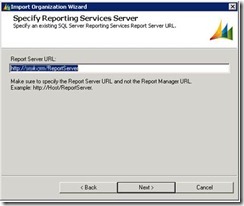
    5. Select the SQL Server instance and the Organization database to import. This corresponds to the restored DB on the SQL Server 2008/2008R2 instance used for Dynamics CRM 2011.
    If everything is on the same box as this case, you may already have the values automatically inferred.

    6. Then, the Import Organization Wizard will ask for some parameters regarding to the organization itself, such as the display name we want to use.


    7. After setting the above parameters we will be asked about users mappings, this is, how the users which are present on the organization to be imported are mapped to CRM accounts.
    If you are migrating from a Dynamics CRM 4.0 deployment which is on the same domain (as it is this case), you would prefer just to allow CRM 2011 to automatically map the users and create the new users as needed.
    For doing so, just click on the first option and press 'Next'.


    8. The result of the auto-mapping:

    9. If the domain user account you are running the application is not mapped with any user with the System Administrator security role, you will be prompted with the following message:

    This means you will have to manually map one of the accounts to the current user you are logged on. Do this by just selecting the user and clicking on 'Browse...' to specify the current user account.

    10. On next step, some system checks are carried out again:

    11. The 'Ready to Import' dialog comes up!. Just click on 'Import' to start the migration!

    12. The import runs (it takes some time, depending on the amount of data and customizations)...

    13. When the import process finishes successfully, it displays the following message:

    14. If you want to set this imported organization as your default one, just get back to Deployment Manager->Organizations , refresh data (if you had the app open while importing) and then right click the imported organization and select 'Set as Default Organization'

    If you are not going to use the default organization created during the CRM 2011 installation, I would suggest deleting it, also by right-clicking on the organization name.
    15. Now, just enter the URL on Internet Explorer and verify your data and customizations!

    At this point, you already installed CRM 2011 and successfully migrated an existing CRM 4.0 organization.

    Friday, April 15, 2011

    Label in CRM 4.0

    In CRM 4.0, if you want to add a Label on the form/in the section, the easiest way to achieve this would be, to add a text box, disable it and remove the border.

    Add the below function in the on load of the form.
    //For adding a label “Testing the heading”
    ConvertControlToLabel( "new_textboxId"); // “new_textboxId” is the Id of a textbox
    
    function ConvertControlToLabel( controlId ){ 
     var control = document.getElementById( controlId ); 
    
     if( control ){ 
      control.Disabled = true; 
      control.style.border = "0px"; 
     }
    }
    
    One other quick tip:
    If you want to increase/decrease the width of the label to fit in to accommodate the label text in to one line, you can double click on the section and change the field width default value of 115 pixel to the appropriate you want.

    NOTE: This is an unsupported way of implementation.

    Friday, February 18, 2011

    IFD Authentication OR AD athentication?

    Brief introduction to IFD and deplyment steps:
    IFD allows the customers to configure their CRM system to be reachable from outside the intranet. It might be internet or outside of the firewal.

    The main difference when using IFD vs. typical on-premise deployment is how users are authenticated.

    When using the on-premise version, IIS handles most of the authentication via integrated windows authentication.

    For the IFD, we need to make use of custom CRM Authentication handler modules while setting up. In IFD, the web site is opened for anonymous access and the authentication relies on the presence of the CRM ticket cookie. This cookie is obtained by starting off from a sign-in page.

    The Internet Facing Deployment steps:
    In order to access the custom pages via AD authentication and IFD Authentication following are some of the main steps.

    1) Place your build code in the IFV Folder
    2) The Custom ASP.net pages must be in side the CrmAppPool

    Your published folder should contain
    a) custom aspx page with an assembly reference
    b) Resource folder in case if you have used any.
    c) bin folder, which contains the assembly

    How to register the assembly name?
    Go to the properties on the Webapplication project and set the Assembly name.
    Register the assembly name in the .aspx page at the top. For example ()

    4) Add the organization name to the querystring
    5) Use the CrmImpersonator class. All access to the Crm web services needs to be wrapped within the using (new CrmImpersonator()) block.
    6) Use the ExtractCrmAuthenticationToken static method. This is necessary to get the context of the calling user.
    7) Use CredentialCache.DefaultCredentials to pass AD credentials to the Crm web services.

    Accessing the page from an internal address:
    http://[server]/[orgname]/ISV/TestFolder/TestPage.aspx

    Accessing the page from an external address:
    http://[orgname].[server name (Fully qualified domain name)]/ISV/TestFolder/TestPage.aspx

    Hope this helps,
    Chaitanya...