Monday, January 30, 2012

Dealing with N:N Relationship in MS CRM - 2011

In the latest version of MS CRM 2011, the AssociateEntitiesRequest class has been deprecated. Now, we need to make use of AssociateRequest Class.

Here is an example to associate an entity record.

// Create the request object and set the monikers with the
// orderproduct_association relationship.
AssociateRequest productOrder = new AssociateRequest
{
    Target = new EntityReference(order.EntityLogicalName, orderId),
    RelatedEntities = new EntityReferenceCollection
    {
        new EntityReference(product.EntityLogicalName, productId)
    },
    Relationship = new Relationship("orderproduct_association")
};

// Execute the request.
_serviceProxy.Execute(productOrder);

Thursday, November 10, 2011

context.Depth in Plugin

All,

I was facing a weird issue, when updating an entity from another entity. Let me be more clear in what I mean with an example as explained below.

Example:

  • I had registered a Plugin on Entity A


  • I had another plugin registered on Entity B


  • To meet one of the Business scenario, I was doing an Update from the Entity B on Entity A


  • There was also a workflow which was running on Entity B


  • The Issue was when updating Entity B, the execution context in Entity A was getting in to an infilite loop and was throwing up an exception.

    Inorder to overcome the above scenario, we need to make use of the context.Depth property.

    Here is how it works:
    1) The value of context.Depth property == 1 (when the plugin was initiated from an Entity A [where the plugin was registered])
    2) The value of context.Depth property == 2 (when the plugin was initiated from an Entity B and the value of Depth is 2 in the execution context of Entity A, when the update happening from an Entity B.
    3) The value of context.Depth property == 3 when the Plugin context enters Entity A from a workflow.

    To overcome the above scenario's, fallowing is the code that you need to add it in your Plugin execute method.
    if (context.Depth > 1)
     {
        return; 
     }
    

    Hope this helps,
    Chaitanya...

    Tuesday, November 8, 2011

    Retrieving all the record from an entity

    By default, the RetrieveMultiple method retrieves only 5000 records, this is a limit from the standpoint of performance. In order to retrieve more than 5000 records, please fallow the pattern explained in the below code.

    I have written a console application to retrieve all the Account records. The below code is a method to achieve that. The main logic in retrieving all the records is by passing the PageInfo object to a QueryExpression.
    private static void GetAllActiveAccounts(OrganizationServiceProxy service)
    {
    EntityCollection retrieved;
    const int servicePageSize = 5000;
    int pageNumber = 1;
    string pagingCookie = string.Empty;
    const int pageSize = servicePageSize;
    int totalRecordsCount = 0;
    
    do
    {
    var cols = new ColumnSet();
    cols.AddColumns(new string[] { ACCOUNT_ID, ACCOUNT_NAME });
    var filter = new FilterExpression { FilterOperator = LogicalOperator.And };
    filter.AddCondition(new ConditionExpression(STATE_CODE, ConditionOperator.Equal, new object[] { 0 }));
    
    
    var query = new QueryExpression
    {
    ColumnSet = cols,
    Criteria = filter,
    EntityName = ENTITY_ACCOUNT,
    PageInfo = new PagingInfo()
    {
    PageNumber = 1,
    Count = pageSize
    }
    };
    
    if (pageNumber != 1)
    {
    query.PageInfo.PageNumber = pageNumber;
    query.PageInfo.PagingCookie = pagingCookie;
    }
    
    retrieved = service.RetrieveMultiple(query);
    if (retrieved.MoreRecords)
    {
    pageNumber++;
    pagingCookie = retrieved.PagingCookie;
    }
    
    try
    {
    if (retrieved.Entities.Count > 0)
    {
    totalRecordsCount += retrieved.Entities.Count;
    
    foreach (var accountEntity in retrieved.Entities)
    {
    if (accountEntity.Attributes.Contains(ACCOUNT_ID))
    {
    var accountId = (Guid)accountEntity.Attributes[ACCOUNT_ID];
    var accountName = (string)accountEntity.Attributes[ACCOUNT_NAME];
    Console.WriteLine("Account Name: " + accountName);
    }
    }
    }
    }
    catch (Exception ex)
    {
    Console.WriteLine(ex.Message);
    Console.ReadLine();
    }
    
    } while (retrieved.MoreRecords);
    
    Console.WriteLine("Total records: " + totalRecordsCount);
    }
    

    Friday, September 30, 2011

    Filtered Lookup OK Button disabled.

    I was, facing a weird issue in the filtered lookup configured through the JavaScript.

    This is what the issue was: I was, able to see the filter happening, But, when I open a look up, the OK button to select one, was disabled.

    Solution: In the Layout Xml, I had a different Id field of another entity (Please, fallow the below line of code to find an ID). Also, if you make any typo while defining an Id field, you will face this issue (OK button disabled).
    "" +
    

    Hope, this helps.

    Object Type Code in CRM 2011

    Below, is the sample to get the Object Type code from the CRM 2011. Since, the object type code can be easily found from the entity record, which, may not be same in the other environment when you import the solution. We can fetch the Object Type code dynamically from the sample as in the below code.

    var getObjectTypeCode = function(entityName) {
    var lookupService = new RemoteCommand("LookupService", "RetrieveTypeCode");
    lookupService.SetParameter("entityName", entityName);
    var result = lookupService.Execute();
    
    if (result.Success && typeof result.ReturnValue == "number") {
    alert(result.ReturnValue);
    return result.ReturnValue;
    } 
    else {
    return null;
    }
    }
    

    You may not find the "RemoteCommand" in the SDK, But, internally this has been in use in CRM 2011. More information to fallow...

    Thursday, September 29, 2011

    Using Fetch Expression from the Plug in code. CRM 2011

    Fallowing, are the steps that we can make use of while executing the Fetch XML query.

    1) Create a fetch xml query with the help of Advanced find option and format as in the below code

    2) Call service.RetrieveMultiple and pass on the Fetch Xml query to the Fetch expression as in the below code. This should give you the result.

    string fetchAccountType = @""+
    ""+ 
           ""+
           ""+
           ""+
           ""+
           ""+
           ""+
           ""+
           ""+
           ""+
           //Passsing a parameter (accountId) to the fetch xml query
           "" +
           ""+
           ""+
           ""+
           ""+
           "";
                    var entityCollection = service.RetrieveMultiple(new FetchExpression(fetchAccountType));
                    string accountType = string.Empty;
                    if (entityCollection.Entities.Count > 0)
                        if (entityCollection.Entities[0].Attributes.Contains("new_name"))
                            accountType = entityCollection.Entities[0].Attributes["new_name"].ToString();     

    Tuesday, May 31, 2011

    CRM Upgrade from 4.0 to 5.0

    UPGRADING FROM DYNAMICS CRM 4.0.

    1. Get a full backup of your current Organization SQL Server database on Dynamics CRM 4.0.
    2. Restore the DB backup on the new SQL Server instance used for Dynamics CRM 2011.

    3. Open Deployment Manager console (Start->All Programs->Microsoft Dynamics CRM->Deployment Manager)

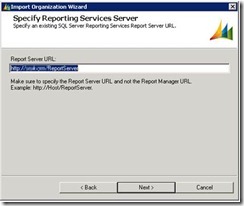
    4. Within Deployment Manager, go to Organizations->Import Organization…

    5. Select the SQL Server instance and the Organization database to import. This corresponds to the restored DB on the SQL Server 2008/2008R2 instance used for Dynamics CRM 2011.
    If everything is on the same box as this case, you may already have the values automatically inferred.

    6. Then, the Import Organization Wizard will ask for some parameters regarding to the organization itself, such as the display name we want to use.


    7. After setting the above parameters we will be asked about users mappings, this is, how the users which are present on the organization to be imported are mapped to CRM accounts.
    If you are migrating from a Dynamics CRM 4.0 deployment which is on the same domain (as it is this case), you would prefer just to allow CRM 2011 to automatically map the users and create the new users as needed.
    For doing so, just click on the first option and press 'Next'.


    8. The result of the auto-mapping:

    9. If the domain user account you are running the application is not mapped with any user with the System Administrator security role, you will be prompted with the following message:

    This means you will have to manually map one of the accounts to the current user you are logged on. Do this by just selecting the user and clicking on 'Browse...' to specify the current user account.

    10. On next step, some system checks are carried out again:

    11. The 'Ready to Import' dialog comes up!. Just click on 'Import' to start the migration!

    12. The import runs (it takes some time, depending on the amount of data and customizations)...

    13. When the import process finishes successfully, it displays the following message:

    14. If you want to set this imported organization as your default one, just get back to Deployment Manager->Organizations , refresh data (if you had the app open while importing) and then right click the imported organization and select 'Set as Default Organization'

    If you are not going to use the default organization created during the CRM 2011 installation, I would suggest deleting it, also by right-clicking on the organization name.
    15. Now, just enter the URL on Internet Explorer and verify your data and customizations!

    At this point, you already installed CRM 2011 and successfully migrated an existing CRM 4.0 organization.